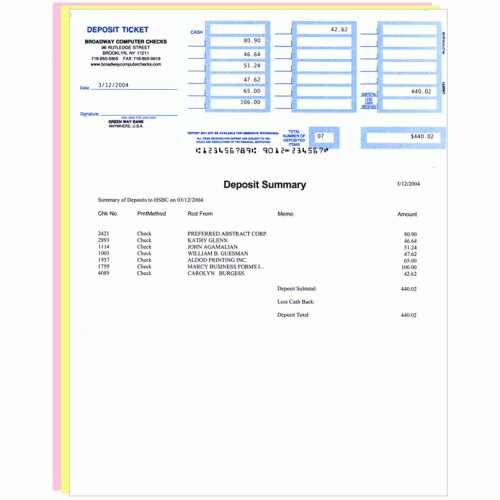
To generate payment slips directly from your financial software, start by navigating to the transaction section. Select the option for creating a payment form, and ensure you have the correct account details and transaction amounts ready. This will allow you to generate documents quickly without manual input.
After generating the form, carefully review the details. Check the transaction information such as the amount and recipient, and ensure all necessary fields are filled out correctly. Double-check the format of the document before printing to avoid errors.
If you need to print multiple copies of the forms, adjust the print settings accordingly. Many software systems will allow you to modify the document size or print multiple pages at once to save time. Using pre-designed templates can streamline this process and ensure consistency.
How to Access and Download Payment Forms
To access payment forms, start by logging into your financial management software. Once logged in, navigate to the “Banking” or “Payments” section, where you’ll find options related to transactions. Look for a link or button that says “Create Payment Form” or “Generate Transaction Slip”.
Next, select the type of form you wish to generate. Ensure you have the correct banking account and transaction details ready, as this will speed up the form creation process. Some platforms also allow you to select the format in which you want to generate the form (PDF, Excel, etc.).
After selecting the correct type of document, review the data input on the screen. Make sure all fields, including the account number, recipient details, and amount, are accurately filled in. This ensures that the generated form will be error-free.
Once you’ve reviewed the information, click on the “Download” or “Generate” button to create the document. Depending on the platform, it may download automatically or prompt you to save the file to a location on your device.
If you’re using pre-designed templates, some tools offer automatic population of common details like account numbers, which can save you time. These templates are particularly useful if you need to print multiple forms with the same format.
Finally, after downloading the form, open it to verify its layout and content. If everything appears correct, you can proceed to print or save the document as needed. Many tools also allow you to print directly from the download screen to save additional time.
Steps to Fill Out and Print Payment Forms
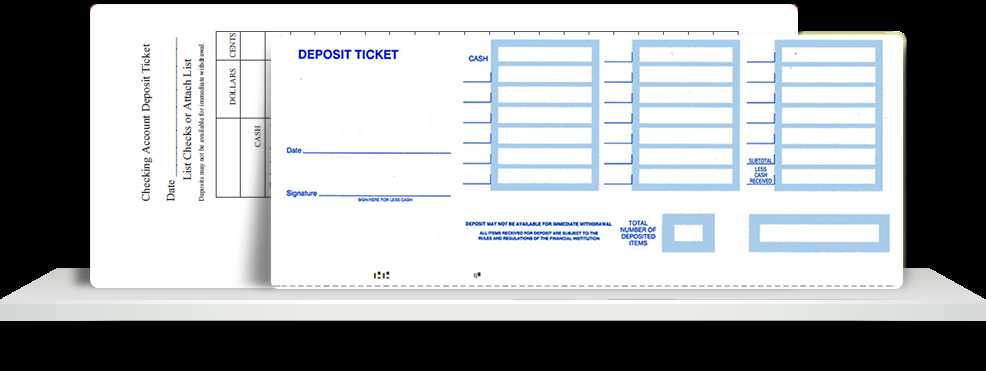
Start by opening the payment form in your software. Ensure you have all necessary transaction information, such as the amount, date, and recipient details, before proceeding. This will make filling out the form quicker and more accurate.
Next, input the account number or details for the bank where you are depositing the funds. Double-check that this information is accurate to avoid mistakes when processing the transaction.
Fill in the transaction amount in the designated field. Many systems automatically calculate the total, but it’s important to review this to ensure accuracy before proceeding. Some forms also require you to categorize the payment (e.g., cash, check, etc.).
After completing the required fields, review all details for correctness. Ensure that every section is properly filled out, including any notes or descriptions for the payment, if applicable. Once everything is verified, proceed to print the document.
Finally, click on the print button to generate a hard copy. Make sure your printer is connected and has sufficient paper. If necessary, save the form as a PDF for digital records before printing it out for your files.
Common Issues with Payment Forms and How to Fix Them
If the form is not printing properly, check your printer settings. Ensure your printer is connected, has enough ink or toner, and is set to print at the correct page size. Also, verify that the paper size matches the format of the form you’re trying to print. Adjusting these settings should resolve most printing issues.
Another issue may arise when certain fields are not automatically populating with the correct information. To fix this, double-check that the data entered into the software is correct and complete. Missing or incorrect entries could prevent the form from populating properly. Try saving the document again after verifying all details.
Sometimes, the form layout may appear misaligned or cut off when printed. This typically happens due to the printer’s scaling settings. To address this, select the “Fit to Page” option in your print settings. If the problem persists, try printing the form as a PDF first, then print the PDF file to ensure proper formatting.
Another issue users often encounter is incomplete or missing information in fields. This can happen if the form template does not have all the fields needed for the transaction. If this occurs, manually add the missing fields or adjust the template to include them. Most programs allow you to customize form fields for specific needs.
If you see a mismatch between the transaction amount and the printed amount, verify that the correct calculation has been made in the software. Ensure the currency formatting is consistent with your bank’s requirements, as some systems may display the number with extra spaces or characters that prevent it from aligning with the bank’s deposit slip format.
In rare cases, some software glitches may cause forms to not load at all or display error messages. If this happens, try restarting your software or computer. Check for software updates that might address the issue. If the problem continues, reinstall the application to clear any potential corrupted files.
Finally, if the form still doesn’t print or display correctly despite trying all these solutions, consider contacting customer support for assistance. They may offer troubleshooting steps specific to your version of the software or recommend a different method of printing, such as using a third-party tool or template.