
To begin organizing your materials, download a template that fits your needs. Select a design that provides flexibility for different categories or sizes. After downloading, print it on high-quality paper such as card stock for durability, ensuring the tags withstand repeated handling over time.
Customize the tags further by adjusting the color scheme, fonts, or adding relevant icons. This makes it easy to quickly identify the contents of each section. For instance, assign specific colors to different themes, like blue for business documents or green for personal files, to streamline your organizational system.
Once printed, carefully cut out each tag along the designated lines. You can then attach them to folders, binders, or storage containers using adhesive. If you want the tags to last longer, consider laminating them, which adds a professional finish and protects the material from wear and tear.
Step-by-Step Guide to Printing Custom Document Tags
Start by selecting a suitable template that matches the size and style you need. Ensure it allows customization for your specific requirements, such as adjustable text fields or flexible dimensions. Look for templates in popular formats like PDF or Word for easy modification.
After selecting the template, open it in a compatible program like Adobe Reader or Microsoft Word. Begin customizing the content, adding text that corresponds to the categories or groups you want to organize. Be sure to adjust font sizes and styles to fit the available space effectively.
Next, choose your preferred paper type. For most projects, standard printer paper will work fine, but if you’re organizing important or frequently handled items, opt for thicker card stock for durability. You can also select specialty paper for a more professional look or a textured finish.
Once your design is ready, check the printer settings to ensure they’re optimized for your paper type and size. If you’re using card stock, ensure your printer can handle thicker materials, and adjust the print quality settings for sharpness.
Before printing the entire batch, run a test print on plain paper to check alignment and font sizes. This quick step helps prevent wasting materials and ensures the tags look exactly as you envisioned.
After confirming that everything looks good, proceed with printing on the chosen paper. If you’re printing multiple sheets, make sure to arrange them in the right order and allow sufficient drying time if you’re using ink that might smudge.
Once the tags are printed, carefully cut them out using scissors or a paper cutter for straight edges. Take your time with this step to ensure each piece is the correct size and the edges are even.
Finally, attach the tags to their respective folders, binders, or storage containers. Use strong adhesive or clear tape for a secure hold, and consider laminating them for added protection if you expect frequent handling.
Creative Ways to Organize Your Documents with Custom Tags
To enhance organization, group similar documents together and create categories such as “Invoices,” “Contracts,” or “Receipts.” Use clear, concise text for each section, and choose distinct colors or icons to visually differentiate between categories. This method makes it easy to access and sort through related documents at a glance.
For frequently accessed materials, consider using dividers or binders with custom tags that identify the most important sections. Label sections like “Urgent” or “To Do” to prioritize items based on urgency. This strategy helps ensure that critical documents are always within reach and organized by priority.
If you manage a large volume of records, try a chronological system, labeling sections by months or years. For example, use tags like “2023 Q1” or “March 2023” for better organization and easier tracking over time. This is particularly useful for accounting, tax, or project management purposes where timeline tracking is vital.
Tips for Designing and Customizing Your Own Organization Tags
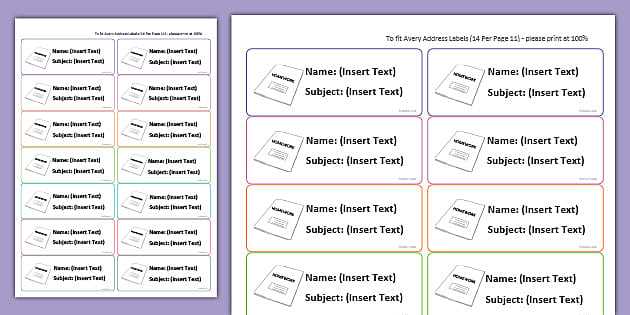
Start with a clean, simple design that emphasizes readability. Use bold fonts for the title or category name, ensuring it stands out against the background. Keep the font size appropriate for easy visibility, especially if your tags will be placed on folders or boxes that require frequent handling.
To enhance organization, choose a color scheme that aligns with the purpose of each category. For example, use blue for financial documents, green for personal records, or red for urgent materials. Color coding will make it easier to identify the contents at a glance.
Incorporate icons or small graphics to visually represent the contents of each section. Simple icons such as a dollar sign for financial files or a calendar for scheduling materials can help identify specific categories more quickly than text alone.
Experiment with different shapes and sizes to make your tags stand out. If you want your tags to cover larger folders or binders, opt for larger tags, while smaller tags work better for individual document pockets or drawer sections. This flexibility ensures your tags fit the items you’re organizing.
For a professional touch, try using a design software or an online tool to create custom templates. Many free tools allow you to upload your own logo or personal branding, offering a polished look to your organizational system.
Consider adding a small space for writing the date or other temporary information on your tags. This feature is useful for documents or materials that change regularly, as it helps you track when they were added or last updated.
Before printing your tags, ensure that you test them on scrap paper to check the alignment, font readability, and overall appearance. This step can prevent wasted paper and ink if adjustments are needed before your final printout.