When working with text encoding, some unexpected spacing issues can arise due to hidden symbols that don’t display on screen. One such symbol is the invisible space, often found when copying text from certain sources like web pages or PDFs. This space may not appear visually, but it can cause problems in programming, formatting, or document processing.
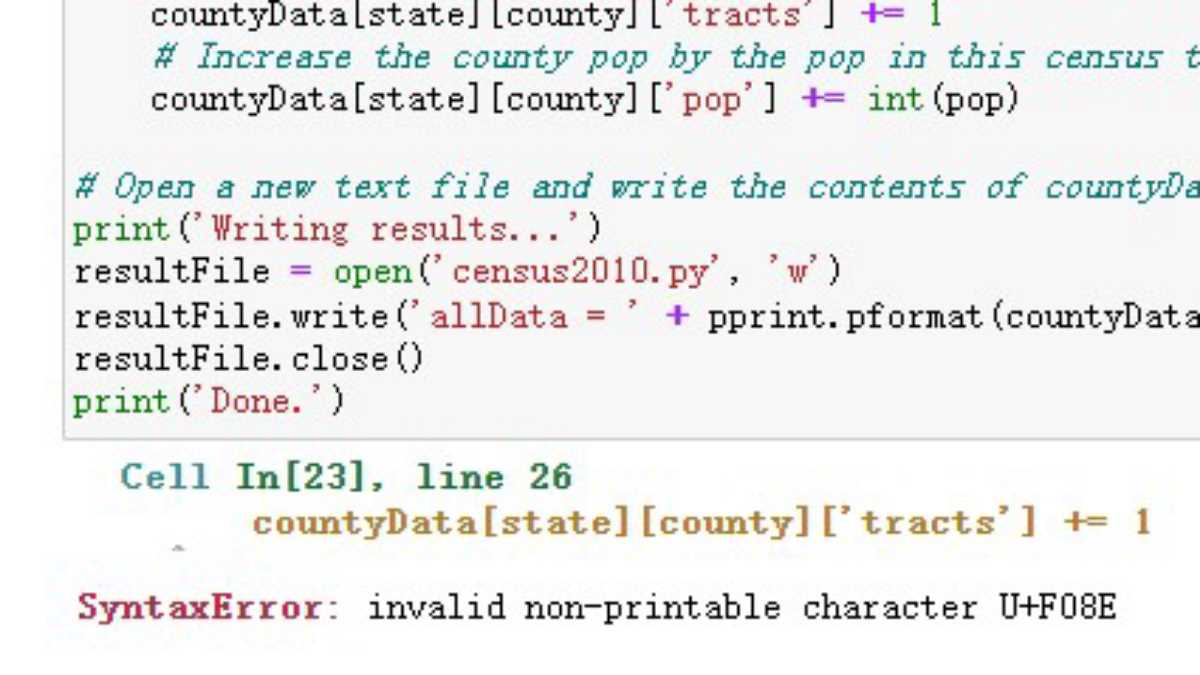
To identify this issue, check your code or document for any unexpected gaps that don’t align with normal word spacing. These invisible symbols can disrupt alignment, cause errors in data processing, or result in improper text rendering. Detecting and fixing them requires understanding which symbols are present and how they impact your text.
The most common way to address this problem is by using text editors or code tools to search for and replace these hidden characters. In some cases, you can find them easily by enabling the “show hidden characters” feature. If you’re dealing with large amounts of data, a script or batch process can automate the removal of these spaces.
Fixing Hidden Space Issues in Text Encoding
To resolve issues with invisible space, start by using a text editor with an option to reveal hidden characters. This will help you spot unusual gaps or symbols that are causing misalignment or formatting problems. Many IDEs and text editors like Sublime Text or Visual Studio Code have built-in functionality to highlight non-printing elements.
Another approach is to use regular expressions to search for and replace the invisible space. You can create a regex pattern to target the specific Unicode or hexadecimal representation of the problematic symbol. Once identified, it can be replaced with a normal space or removed altogether, depending on your needs.
- Use the “find and replace” feature in your text editor for quick fixes.
- If you’re working with code, automate the process by adding a script that scans your files for these unwanted symbols.
- For batch processes, consider using command-line tools like `sed` or `awk` to replace the issue across multiple files.
If the issue persists after cleaning up the space, ensure that your file encoding is set correctly. Using UTF-8 encoding can help avoid hidden symbols by standardizing the representation of text. Be mindful of file conversions, as certain formats may introduce these hidden characters during the import/export process.
Identifying and Understanding the u+00a0 Symbol
The symbol in question, represented by Unicode code point u+00a0, is a space that does not break a line. Often called a non-breaking space, it’s commonly used in web content or word processing to ensure that certain words or symbols stay together on the same line. It can be invisible in most text but still cause layout issues in programming and text rendering.
To spot this symbol, you can use a hex editor or a tool like Notepad++ that allows you to display hidden characters. The non-breaking space will typically appear as a small empty space or as a symbol with the hexadecimal code “00A0.” In many cases, it won’t be obvious until it causes alignment or text wrapping problems.
Unlike regular spaces, which allow for line breaks between words, this space ensures that the words it separates stay on the same line even if the text block is resized. This makes it useful for formatting text, but also tricky when working with string manipulation or data parsing in programming.
In coding, such a space can cause errors if it’s left unnoticed, especially in scripts or when dealing with user input. For example, HTML or JavaScript might interpret it as part of a string, which could result in unexpected output or bugs in your program.
For identification, using regular expressions is a powerful tool. You can write a regex pattern that matches this specific Unicode, ensuring that you catch all instances of it in large bodies of text. Many text editors also have plugins or settings that automatically highlight or mark these invisible spaces for easier detection.
Once identified, removing or replacing the non-breaking space can often be done through simple find-and-replace operations. Whether you’re working with raw text, programming code, or a formatted document, addressing this space issue can prevent formatting problems and errors in your work.