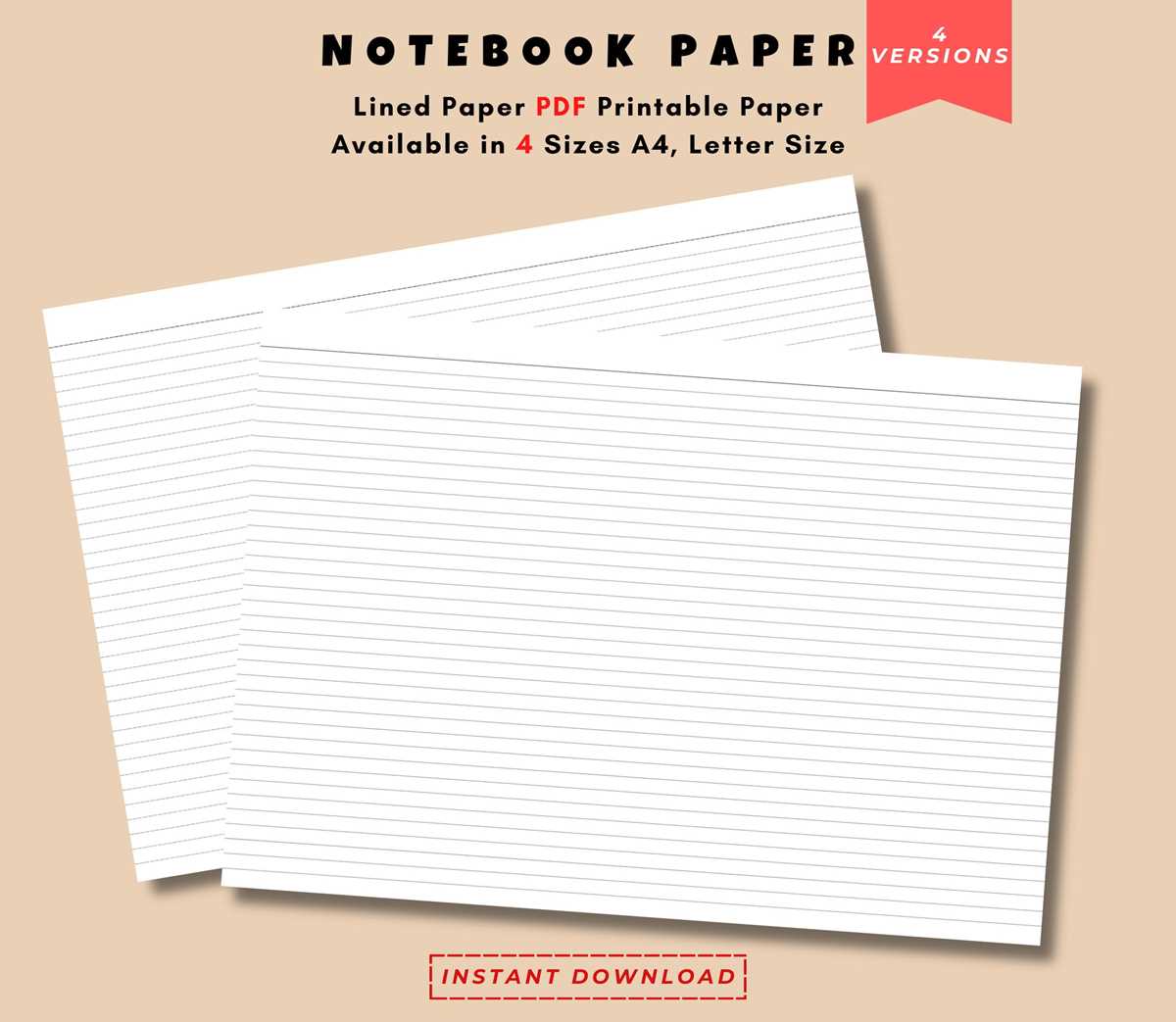
To start, look for reliable online platforms that offer templates for writing or note-taking. These sites often allow you to download different formats, such as PDF or Word, making it easy to print exactly what you need. Adjust settings on your printer to match the dimensions of the design you choose–standard sizes like A4 or letter are common.
If you need a specific design, such as narrow or wide spacing between lines, customize the template. Many resources offer free customization tools where you can change the number of lines per page, adjust margins, or add additional elements like borders. This flexibility makes it easy to tailor the layout for both personal and academic use.
Once you’ve selected the right template and settings, use high-quality print settings for clear and crisp output. Ensure that the margins are correctly aligned so that the text fits neatly within the printable area. This attention to detail ensures that the final result will be clean, organized, and ready for any writing task you have in mind.
Lined Paper Templates for Easy Customization and Printing
When searching for templates for writing, the most important aspect is the compatibility with your printer. Make sure that the design you select fits the size of your printer’s capabilities, typically A4 or letter size. These dimensions are commonly available and ensure smooth printing without cutting off the content.
Once you’ve chosen a template, the next step is selecting the correct spacing between the horizontal lines. Narrow spacing works well for note-taking, while wider lines may be more suitable for younger writers or those requiring extra space for legibility. Customizing this aspect can be done using various online tools or built-in settings in Word or PDF editors.
Consider whether you need margins for your document. Most templates come with predefined margins, but it is often useful to adjust these for specific needs. A wider margin on the left side allows for easy binding or note-taking in the margins, while a narrow margin might fit more text on the page.
If you need something beyond the basic design, such as adding a grid or box sections, many websites offer free templates with this functionality. These can be used for specific tasks like handwriting practice, journaling, or organizing ideas in a structured format.
Make sure to use a high-quality printer setting when printing the document. Even if you are using a standard home printer, selecting “best quality” or “high resolution” will improve the clarity of the lines and make your text more legible. This is especially important for pages that will be used for professional purposes, such as business notes or formal reports.
If you’re working on a long project, like an essay or a journal, consider organizing multiple pages. Many websites offer templates that allow for seamless integration, so you can print a series of pages with consistent margins and line spacing for continuity. This will help maintain neatness and readability over long periods of use.
For educational purposes, there are printable templates that include additional guides, such as a centerline for drawing or a margin for annotations. These types of resources can be especially helpful for students or teachers who need to create visually organized assignments or exercises quickly and efficiently.
How to Print Lined Paper at Home Using Standard Printer Settings
Start by choosing the correct template. Many websites provide downloadable formats such as PDFs or Word documents designed specifically for quick printing. Select a design that matches your preferred format, typically A4 or letter size, which works well with most home printers.
Before hitting “Print,” double-check the printer settings. Open your template in the editor of your choice, and go to the print menu. Set your paper size according to your template–usually, this will be “A4” or “Letter.” Ensure that the orientation is correct (portrait or landscape) and that the margins fit the template’s layout.
Adjust the print quality settings for the best results. In your printer’s properties, select “Best Quality” or “High Resolution” to ensure that the lines are clear and crisp. This will prevent the printout from appearing faint or blurred, especially on templates with fine lines.
If your printer allows, use the “Borderless” print option to eliminate any unwanted white space around the edges. This option is useful if your design has lines that extend to the edge of the page. Make sure to preview the printout before proceeding to confirm the layout fits properly on the page.
Once you’re satisfied with the setup, click “Print.” It’s a good idea to run a test print on regular paper to ensure everything appears correctly. If everything looks good, proceed to print on the higher-quality or desired type of material, whether that be thicker cardstock or regular printing paper.