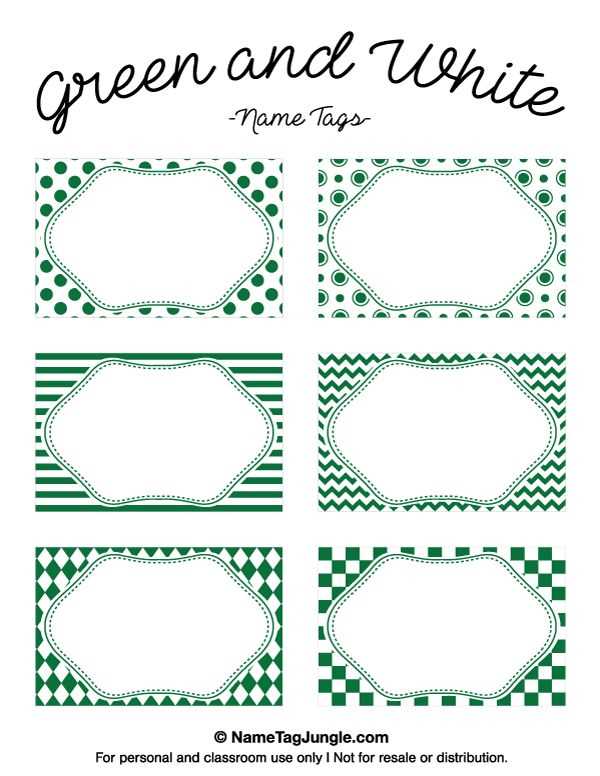
Start by selecting a design that fits the occasion, whether it’s a business meeting, party, or conference. Choose a format that allows easy personalization of each piece, including space for names, titles, or any additional information. Many online resources provide downloadable files with various styles, so pick the one that aligns with your event’s theme.
Pick the right paper for durability. Use a thicker stock, such as cardstock or heavy-duty paper, to ensure the labels remain intact throughout the event. A flimsy sheet may tear or wrinkle easily, especially when handling them frequently. If you’re looking for something more luxurious, consider glossy or matte finishes for a professional look.
Adjust the layout and dimensions. Ensure the design fits your printing format. Most printable sheets come in standard sizes like 8.5″ x 11″, but it’s important to double-check whether the labels are properly aligned with your printer’s settings. If your printer has label-specific templates, take advantage of them for better alignment and faster results.
Customize with text and graphics. Make your labels stand out by choosing a clear font for easy readability and adding relevant graphics or logos. Depending on your event, you may want to incorporate small icons, borders, or background colors to enhance the overall aesthetic. Personalizing them helps create a welcoming atmosphere for your attendees.
Creating Custom Labels for Events
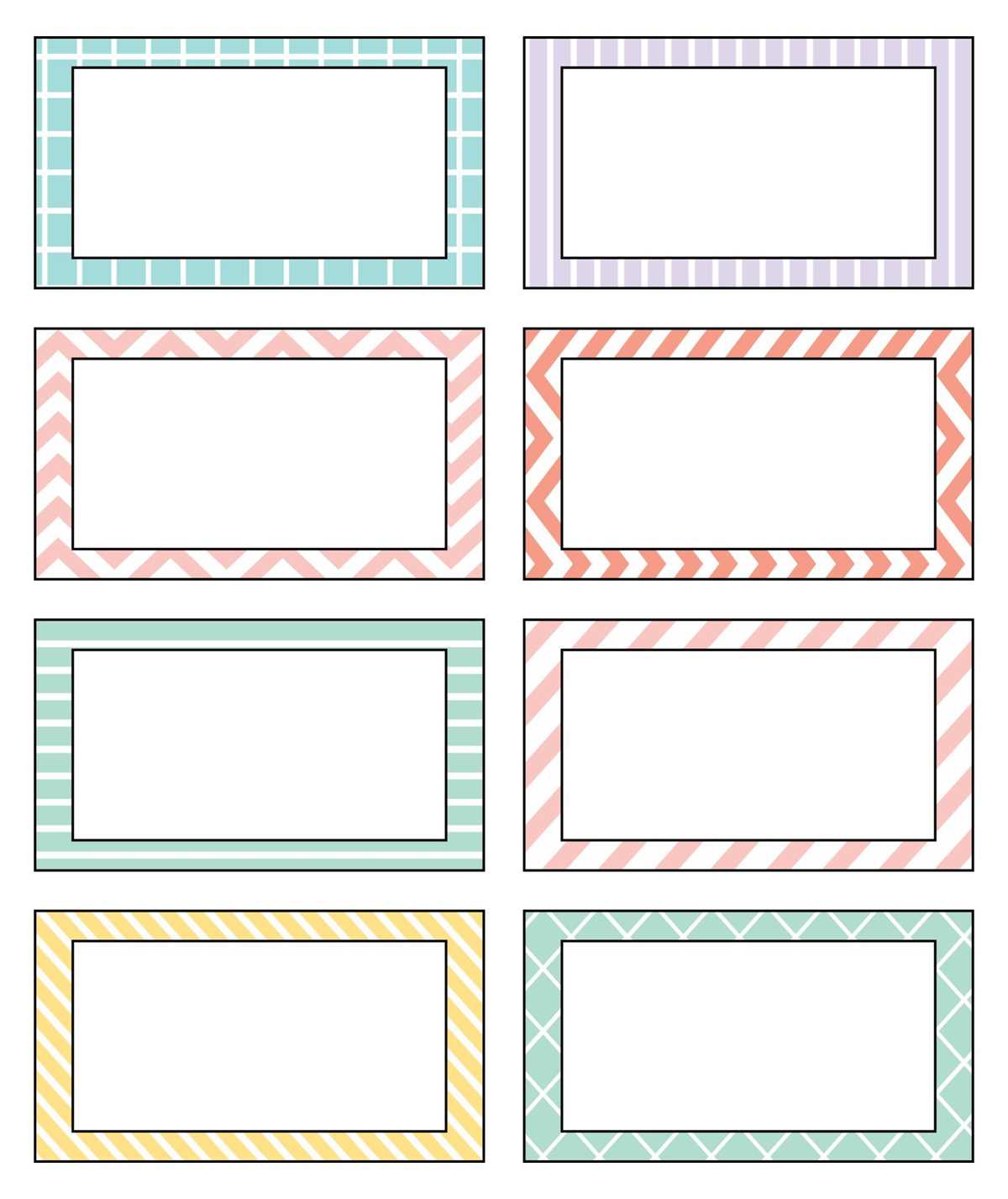
Choose a design that suits your event’s style and theme. Opt for a format that allows clear space for the participant’s name, role, or any other necessary details. Ensure the design is easy to read and aligns with the tone of the gathering, whether formal or casual.
Consider the paper quality. Select a heavier paper, like cardstock, to ensure the labels hold up throughout the event. If your event involves high traffic or outdoor settings, opt for laminated paper for added durability. The finish of the paper will also affect the overall aesthetic, so choose either matte or glossy based on the look you prefer.
Ensure proper alignment with your printer. Double-check that the design fits the standard paper size and aligns with your printer’s settings. Many label sheets are designed to fit standard 8.5″ x 11″ sheets, but be sure to adjust the margins to avoid misalignment during printing.
Customize the text and layout. For a personal touch, choose a font that is legible and appropriate for the occasion. If you’re organizing a business event, a more formal font may work best, while a casual event might benefit from a more playful typeface. Add logos or other graphics to make the labels stand out.
Use templates to save time. Many free and paid templates are available online, which can save you time in creating and aligning the design. Choose a template that allows customization so you can easily add or adjust details as needed for each individual.
Experiment with different shapes and sizes. While rectangular labels are common, you can experiment with circular or other shapes to add visual interest. Adjust the size depending on the amount of information you want to include, ensuring that the text remains legible and the design is balanced.
How to Customize and Print Name Labels for Events

Start by selecting a design that fits the tone and purpose of your event. Choose a simple and clean format if it’s for a formal business meeting, or opt for something more colorful and playful for casual gatherings. Make sure the design leaves enough space to clearly display the individual’s information.
Pick the correct paper type. Use a heavier cardstock for a sturdy feel. For outdoor events or if the labels will be handled frequently, consider using laminated sheets or self-adhesive materials to ensure durability. Matte or glossy finishes can also add a professional touch depending on your preference.
Set up your printer correctly. Ensure that your printer is aligned to print on the correct paper size and that the paper is loaded properly. If using pre-cut sheets, double-check the margins to make sure the design fits the page without being cut off. If using full-sized sheets, ensure the printer settings match the size of the design you’ve chosen.
Customize the text. Choose a legible font, making sure it’s clear and easy to read from a distance. Adjust the font size based on the space available on your sheet. For a professional look, stick to standard fonts like Arial or Times New Roman, while for informal events, you can use more decorative fonts.
Use design software for customization. If you want to personalize labels further, use software like Microsoft Word or Adobe Illustrator to adjust colors, logos, or add additional graphics. These tools allow you to adjust elements and make your labels unique to the event.
Test print before the final run. Print a test page on regular paper to check alignment, font size, and overall design. This step ensures that the labels appear as expected and that the printer is functioning correctly. Make any necessary adjustments before printing on your final material.
Print and cut your labels. Once you are satisfied with the design, print the labels on your chosen material. If using pre-cut sheets, simply peel and stick. For custom shapes or designs, use a craft knife or scissors to carefully cut around each label. Make sure each one is neatly trimmed for a polished look.