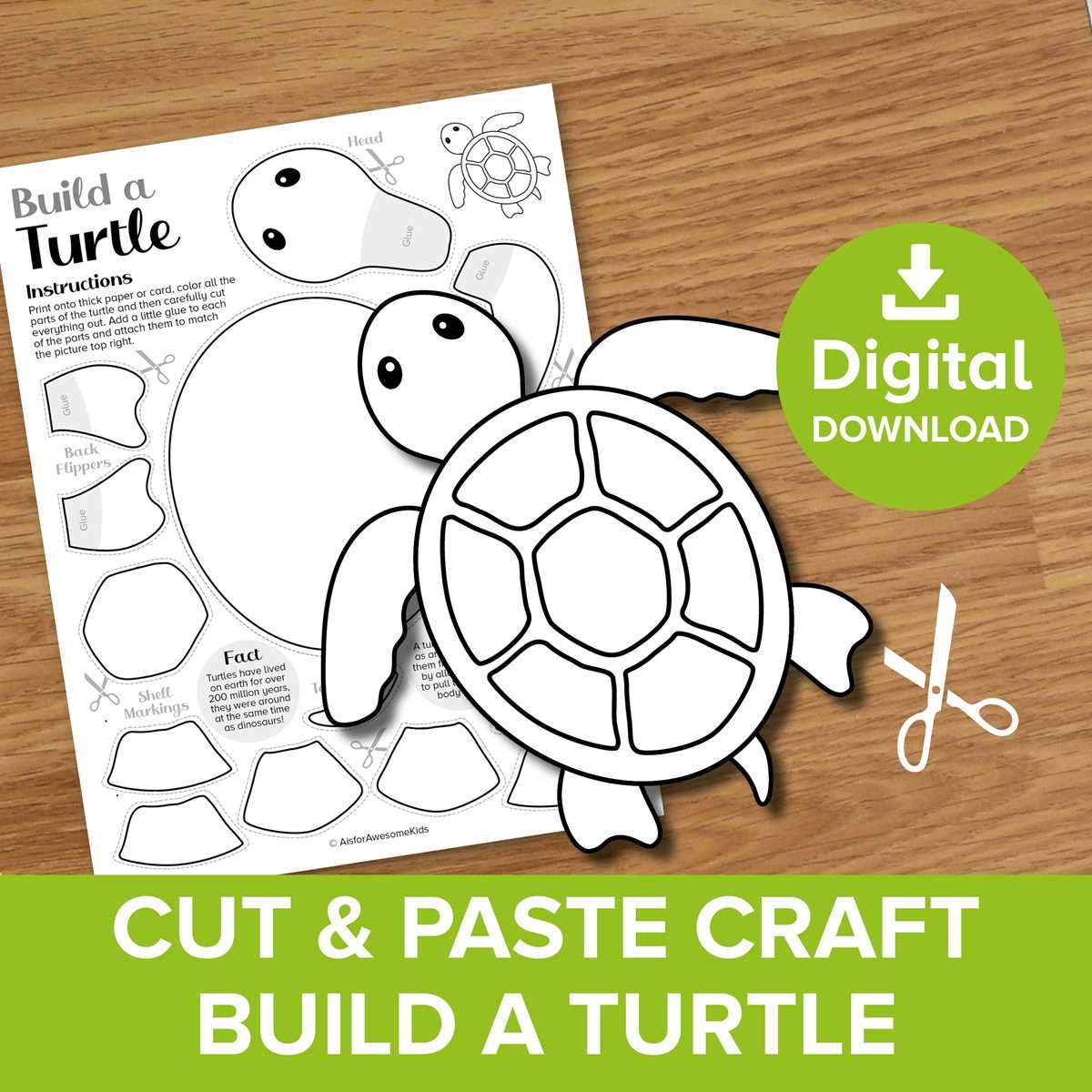
Start with a reliable design software or even simple tools like Microsoft Word or Google Docs to draw shapes, objects, or patterns. These platforms offer basic drawing features that are perfect for beginners, while more advanced programs such as Adobe Illustrator provide greater flexibility and precision.
Once you have selected your software, sketch out your desired shapes or objects, adjusting size and proportions to fit your project needs. Be sure to consider the material you’re working with–paper, cardboard, or fabric–since thickness can impact how the pieces should be sized for accurate assembly.
When it comes to organizing your design, using a grid system will help ensure that everything is aligned properly. Make sure to leave space for cutting along the edges and consider adding dotted lines where folds or assembly points will occur. This will provide clarity for anyone following the template later.

Creating Functional Designs for DIY Projects
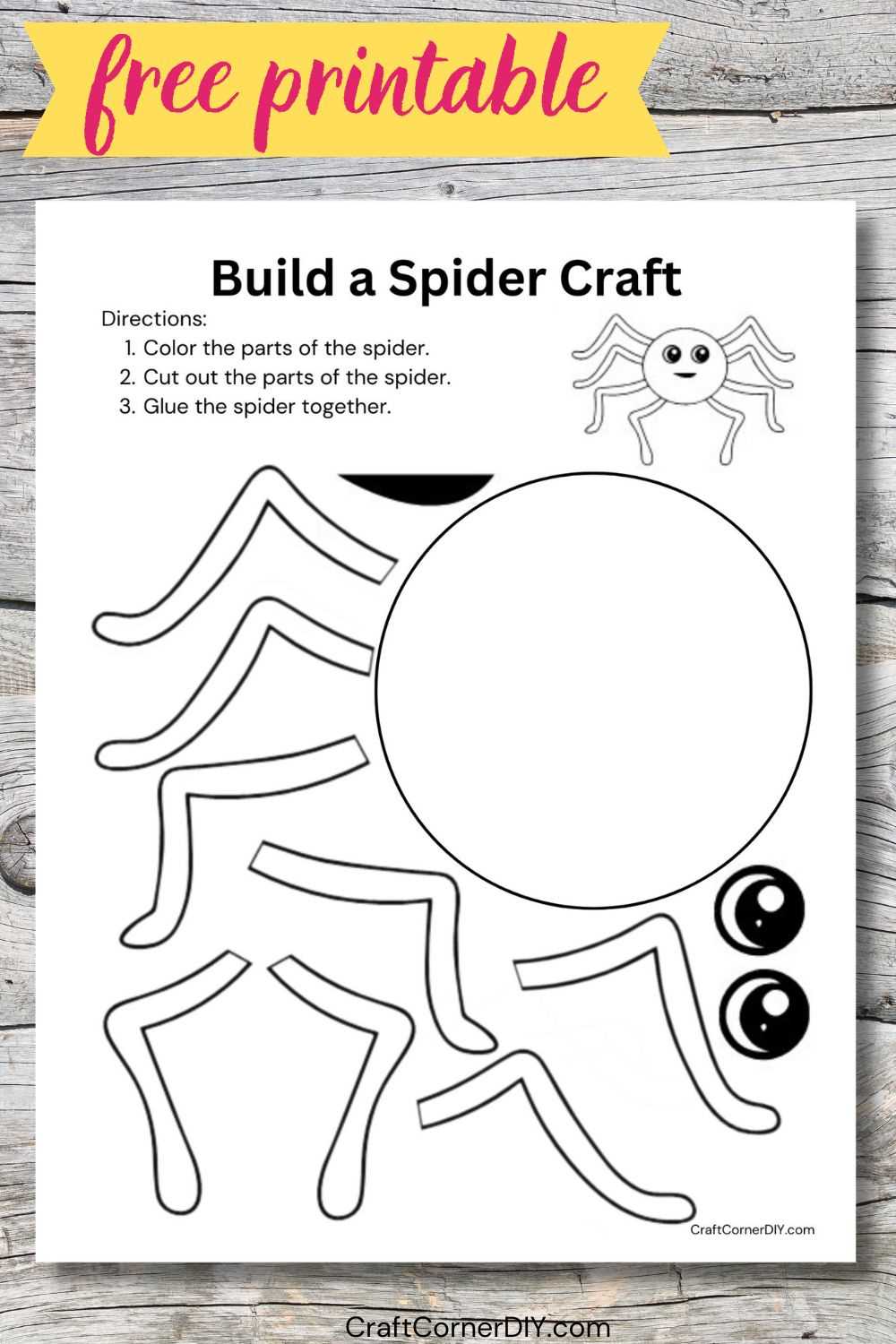
Begin with defining the purpose of your project. Are you making decorations, educational tools, or simple designs for children’s activities? Tailoring your structure to fit the end use will determine size, complexity, and additional elements needed, such as interactive parts or multiple layers. For example, a simple holiday ornament might only need a single layer, while a 3D model may require more advanced folding lines and tabbed sections.
Next, focus on the precision of your lines. Avoid overly complicated designs that could make assembly difficult. Use clear, thick borders for cutting and thinner lines for any folds. If working with intricate shapes or smaller pieces, consider creating a test version using a basic printer before committing to more expensive materials. This helps catch any sizing or alignment issues early.
For an easier experience, save your files in a widely compatible format like PDF or SVG. Both formats retain the integrity of your design and can be opened on most devices without losing resolution. This ensures that your creation remains accurate and clear, no matter where or how it’s printed. If you intend for others to use your design, offering downloadable files will streamline the process, saving time and reducing errors during printing.
Choosing the Right Tools for Creating Printable Templates
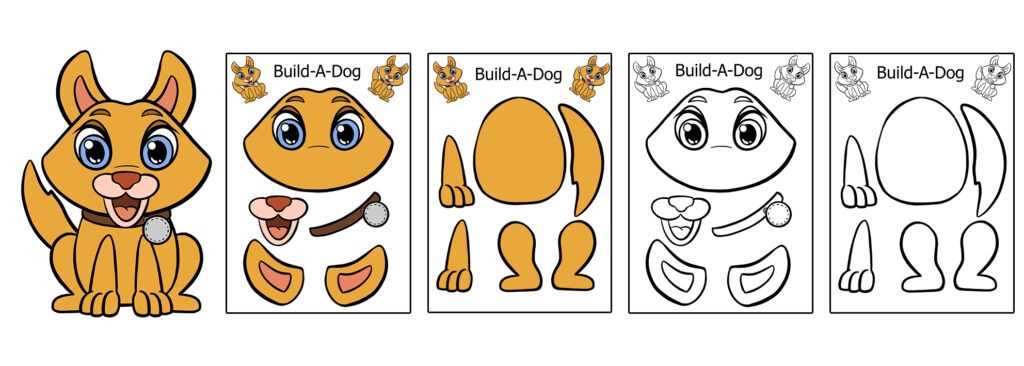
Selecting the right software is the first step in creating accurate and easy-to-use designs. For beginners, programs like Microsoft Word or Google Docs can handle basic shapes and patterns. However, if you’re looking for more precision and flexibility, Adobe Illustrator or Inkscape (a free alternative) offer advanced features such as vector editing, which allows for cleaner lines and scalable designs.
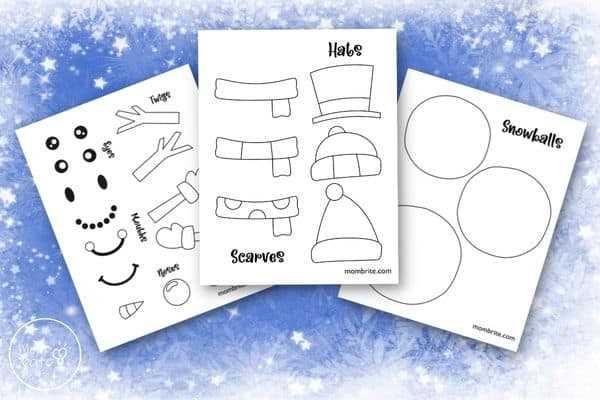
When it comes to cutting or assembling the components, a simple pair of scissors might suffice for smaller projects, but a craft knife or precision cutter will provide greater accuracy for intricate shapes. A cutting mat will help protect your workspace while ensuring that cuts are clean and straight. Additionally, an X-Acto knife or rotary cutter can improve the quality of cuts on thicker materials.
- Design Software: Adobe Illustrator, Inkscape, Microsoft Word
- Cutting Tools: Craft knife, X-Acto knife, precision scissors
- Additional Accessories: Cutting mat, rulers, stencils
Once your designs are ready, choose a printer that supports high-quality color printing, especially if your project involves multiple colors. Inkjet printers are a good option for most DIY designs, but laser printers may offer sharper results for detailed lines. Always test your design on a basic sheet of paper before using your final material to avoid any surprises during the production process.