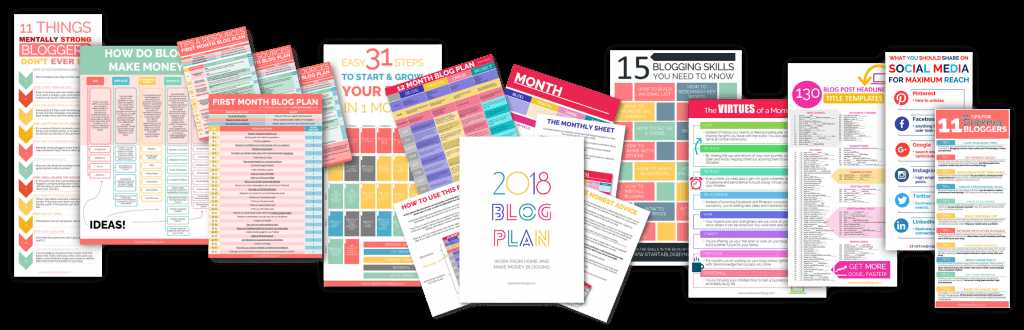
Begin by selecting a user-friendly design tool that fits your project needs. Popular options include Canva, Adobe Illustrator, and Microsoft Word, depending on the complexity of your design. If you’re looking for flexibility, vector software like Illustrator allows for precise adjustments and scalability, while simpler platforms like Canva offer pre-made templates for faster results.
Next, focus on the layout. For documents such as planners, invitations, or educational resources, ensure you define the page size and margins correctly to match the intended print format. Choose appropriate fonts, colors, and images that align with your theme and are legible when printed. Always verify that the resolution is at least 300 dpi to avoid pixelation in the final printed version.
Once your document is ready, prepare for printing. If you’re printing at home, make sure your printer is set to the correct paper size and resolution settings. For larger print runs, consider using a professional printing service to achieve the best quality. If you plan to sell or distribute your designs, consider offering them as digital downloads for easier access.
Steps to Design Custom Documents for Print
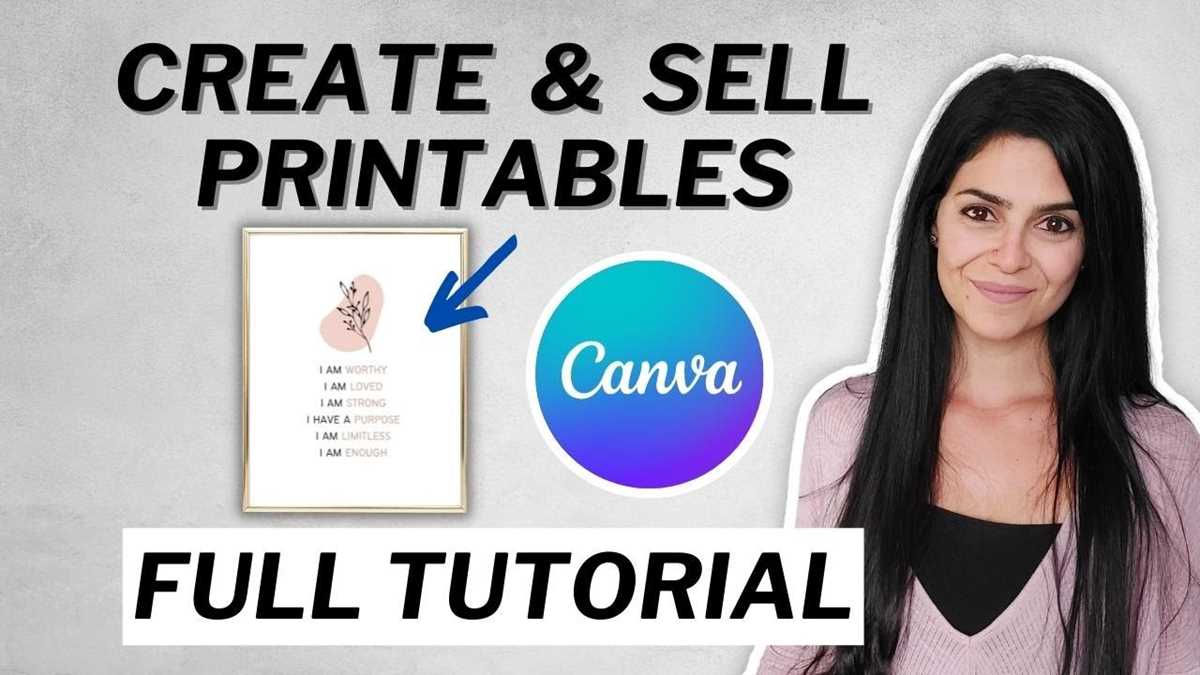
Choose a design tool that aligns with your needs. For simple projects, platforms like Microsoft Word or Google Docs offer basic templates and formatting tools. For more detailed designs, try software like Adobe Illustrator or Affinity Designer, which provide advanced control over graphics and layout.
Define the dimensions and layout of your document. Standard paper sizes like 8.5″x11″ are commonly used, but ensure your design is tailored for the specific size you plan to print. If your design includes images or graphics, make sure they are high resolution (300 dpi) to ensure clarity and sharpness in the final print.
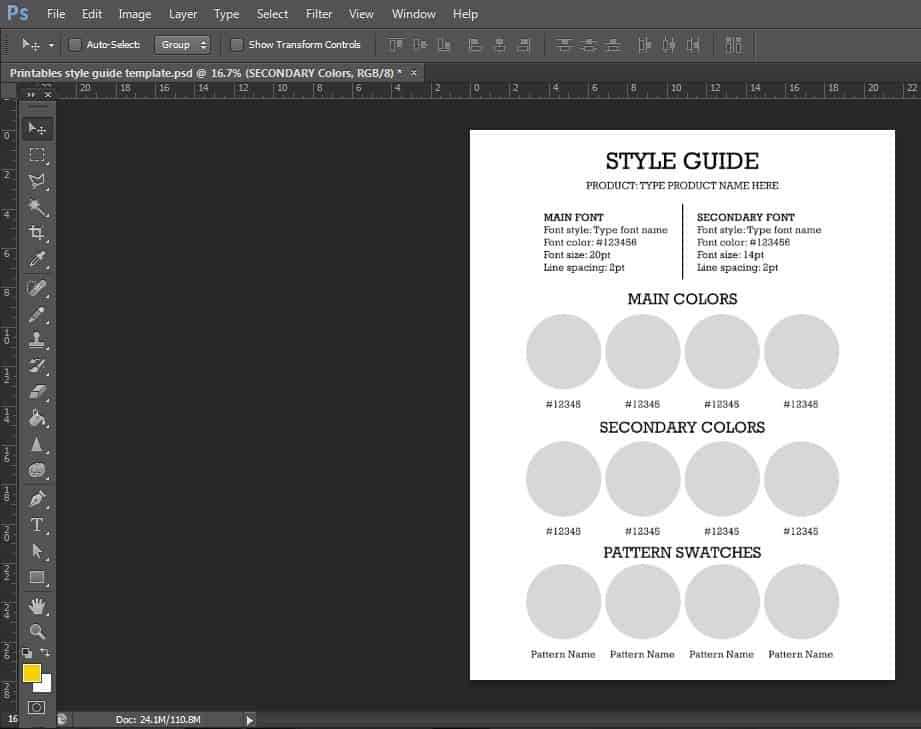
Once your design is complete, check the color settings to ensure they are print-friendly. Use CMYK color mode instead of RGB for the most accurate results when printing. After finalizing the document, save it in a format suitable for printing, such as PDF or high-quality PNG, and make sure to adjust the print settings to match the paper type and printer capabilities.
Choosing the Right Tools for Designing Custom Documents
Select a software that suits the complexity of your project. For beginners or simple designs, tools like Microsoft Word or Google Docs are easy to use and provide basic features such as templates, text formatting, and simple image integration. These platforms are ideal for flyers, posters, and worksheets.
If you require more advanced design capabilities, consider using graphic design software such as Adobe Illustrator or Affinity Designer. These programs provide precise control over vector graphics, layouts, and typography, making them suitable for intricate designs like custom invitations, business cards, or branding materials.
For those who prefer a balance of ease and functionality, tools like Canva or Crello are great options. They offer pre-made templates and a drag-and-drop interface, allowing users to create visually appealing documents without needing advanced design skills. These platforms also support various file formats for both print and digital uses.
If you plan to create complex layouts or want to focus on the arrangement of text and graphics, Adobe InDesign is a solid choice. It excels at multi-page documents such as brochures, magazines, and eBooks, providing advanced layout controls and features for professional publishing.
Consider the design tools’ compatibility with different file types. If your document includes images, ensure the software can export them in high-resolution formats like PNG, TIFF, or PDF. Avoid using low-resolution files for print as they can lead to pixelation and poor print quality.
Finally, choose a tool based on your budget and experience level. While Adobe products are industry standards, they can be expensive. Alternatively, free options like Inkscape (vector-based) or GIMP (photo-editing) offer powerful features at no cost, but they may have steeper learning curves. For quick, low-budget projects, web-based tools like Canva can be a good starting point.