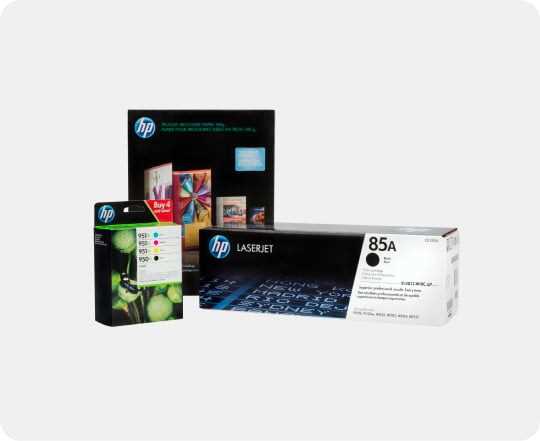
For precise printing on adhesive-backed sheets, choose HP’s high-quality options. These sheets are specifically designed for vibrant, sharp prints that hold up well on various surfaces. Whether creating custom labels, decorative elements, or promotional materials, selecting the right material ensures a flawless finish.
Before printing, ensure your printer settings are configured correctly for maximum compatibility with the material. A few simple adjustments can improve the final result, preventing issues like smudging or poor adhesion. HP products offer easy alignment and stable feed through standard printers, making the process seamless and accessible.
For optimal cutting, use a sharp blade or precision scissors to follow your design closely. If you’re looking to apply your creation onto irregular surfaces, check for tools or templates designed for smooth application without wrinkles. These small adjustments can drastically improve the professional look of your project.
Guide to Using HP Printable Vinyl Sticker Paper
Begin by selecting the correct size for your design. HP’s adhesive-backed sheets come in various dimensions, so match the dimensions of your artwork to the size of the material for a seamless print. For precise cuts, it’s also advisable to adjust your design according to the layout, ensuring that the image fits within the printable area.
Before printing, clean the printer’s feed rollers. Dust or debris can result in misfeeds or uneven prints. A clean printer will provide consistent results across multiple sheets. Always check that the material is aligned properly to prevent any misprinting or paper jams.
For vibrant and durable prints, use the highest quality print settings on your printer. HP material is designed to produce bold, sharp images when paired with high-quality printing options. Choosing the right paper type setting in your printer preferences can make a noticeable difference in the clarity and color depth of the final result.
Test your design on a small piece before printing on a full sheet. This step helps in identifying potential issues like ink bleeding or poor color reproduction, allowing you to make adjustments without wasting material. After the test, adjust the color settings or the print quality to match the desired outcome.
Once printed, allow the sheet to dry for a few minutes before handling. The drying time will vary depending on the ink and environment, but this step ensures that your design does not smudge during cutting or application. Once dry, you can begin cutting out your design using a precise blade or scissors.
For cutting, use a craft knife or cutting machine. Be sure to work on a protective surface like a cutting mat to prevent damaging your workspace. If you’re using a cutting machine, adjust the settings to suit the thickness of the material. A sharp blade will provide clean edges, essential for a professional finish.
After cutting, carefully peel away the backing from the adhesive layer. If the design is intricate, it’s helpful to use a tool like a weeding hook to remove smaller pieces without damaging the main design. Once the excess material is removed, you can easily transfer the design onto your desired surface.
To ensure proper application, smooth the design onto the surface using a tool such as a squeegee. This step will remove air bubbles and ensure that the material sticks evenly. Start from the center and work your way out to avoid wrinkles or misalignment. Once the design is fully applied, press down firmly to secure it in place.
How to Choose the Right HP Vinyl Sticker Paper for Your Projects
Start by assessing the type of surface you plan to apply your designs to. For smooth, flat surfaces like glass, metal, or plastic, choose a material that offers strong adhesion and durability. If you’re working with textured surfaces, opt for a more flexible option that will adhere better to uneven surfaces.
Consider the finish of the material–whether you need a glossy or matte appearance. Glossy sheets are ideal for vibrant designs and add a shiny, eye-catching look to your work. Matte finishes, on the other hand, are perfect for a more subtle and sophisticated appearance, reducing glare and offering a more muted look.
Think about the environment in which the design will be used. If your project will be exposed to the outdoors or areas with high moisture, select a water-resistant or weatherproof option. HP offers materials specifically designed to withstand harsh conditions, ensuring your designs last longer without fading or peeling.
Finally, check the compatibility with your printer model. Not all sheets are designed for every printer, so review the specifications carefully to ensure that the material you choose works with your equipment. This will prevent ink smudging or misprints, allowing for a clean and crisp design each time.